

Nurbid Dark Theme for Upmind
A custom theme for the Upmind client portal interface, providing a modern, eye-friendly dark mode experience.
Screenshots
Set it and forget it.
Once the stylesheet is linked in your footer template, the dark theme applies across the client portal automatically. No admin toggles or per-page settings—visitors get a consistent dark experience on their next load.
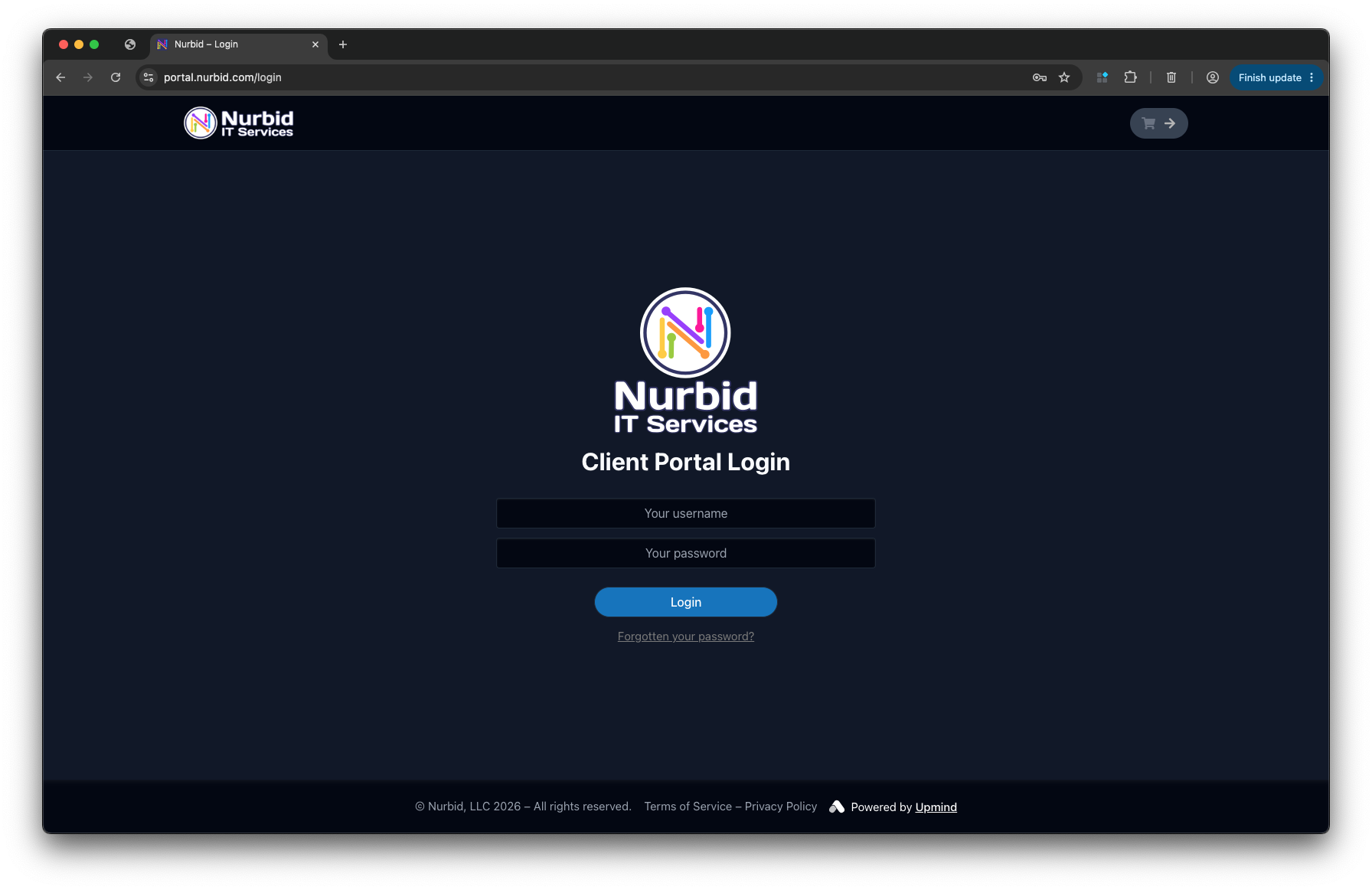
1. Login
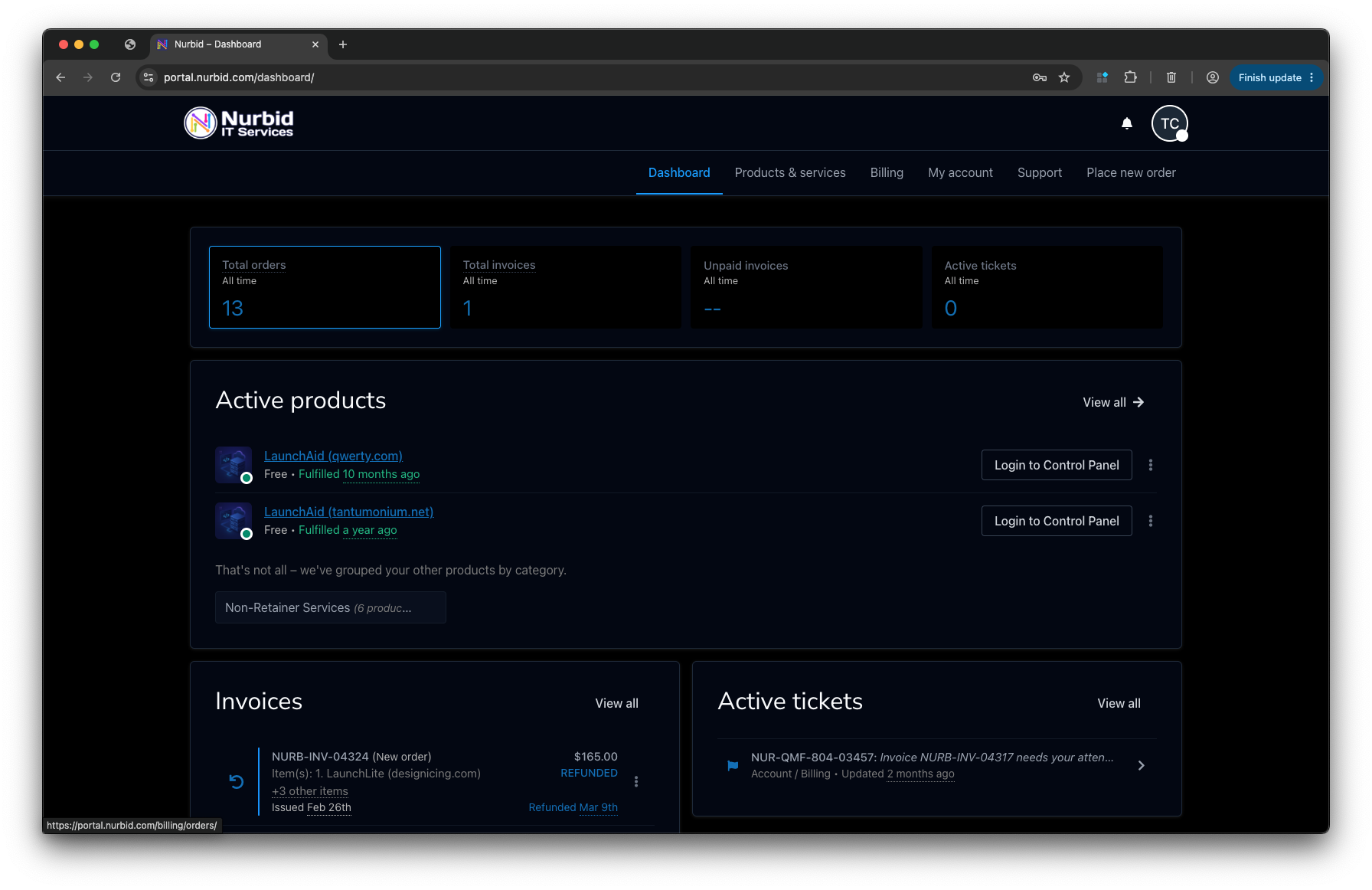
2. Dashboard
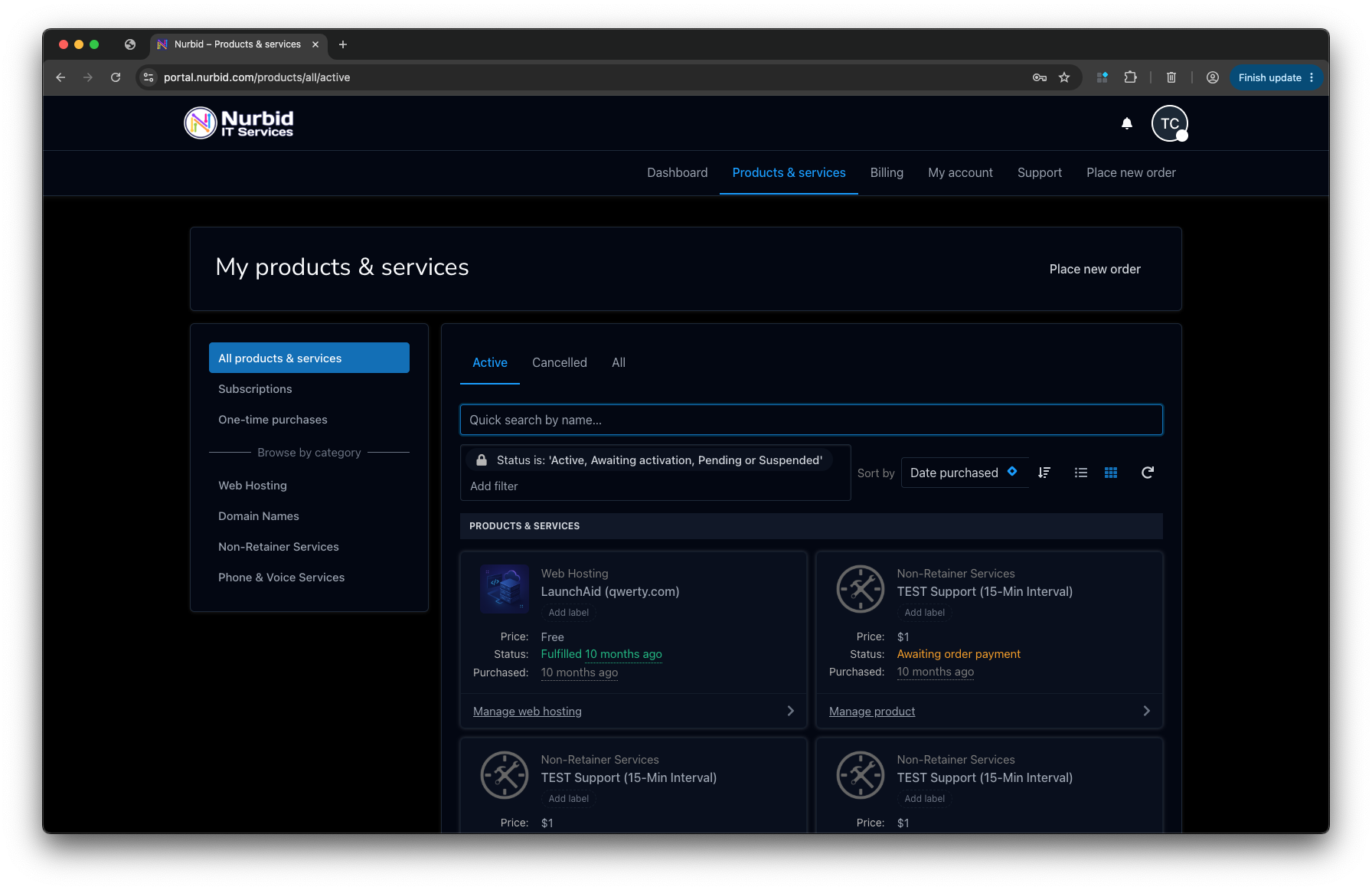
3. Services
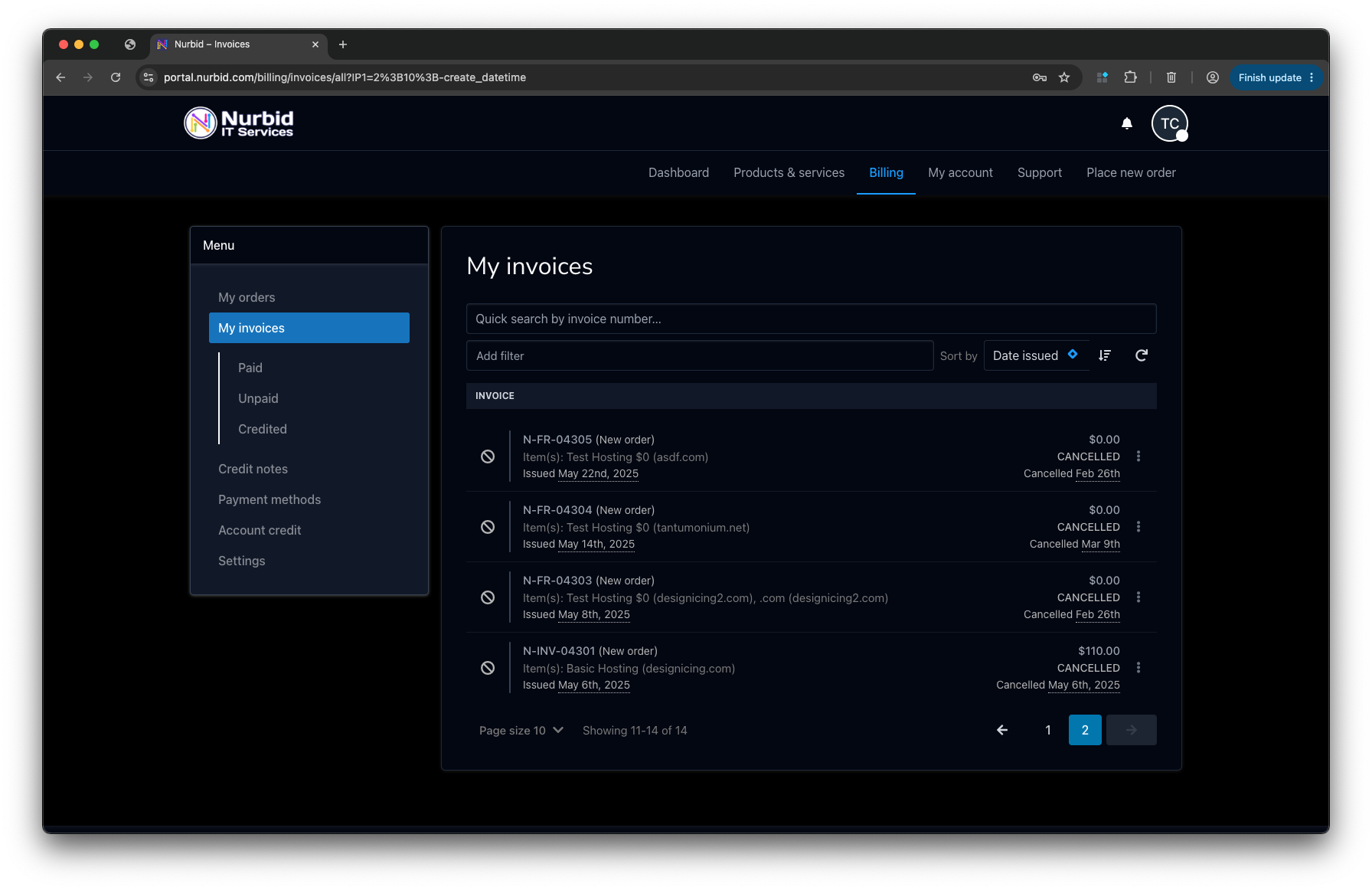
4. Billing
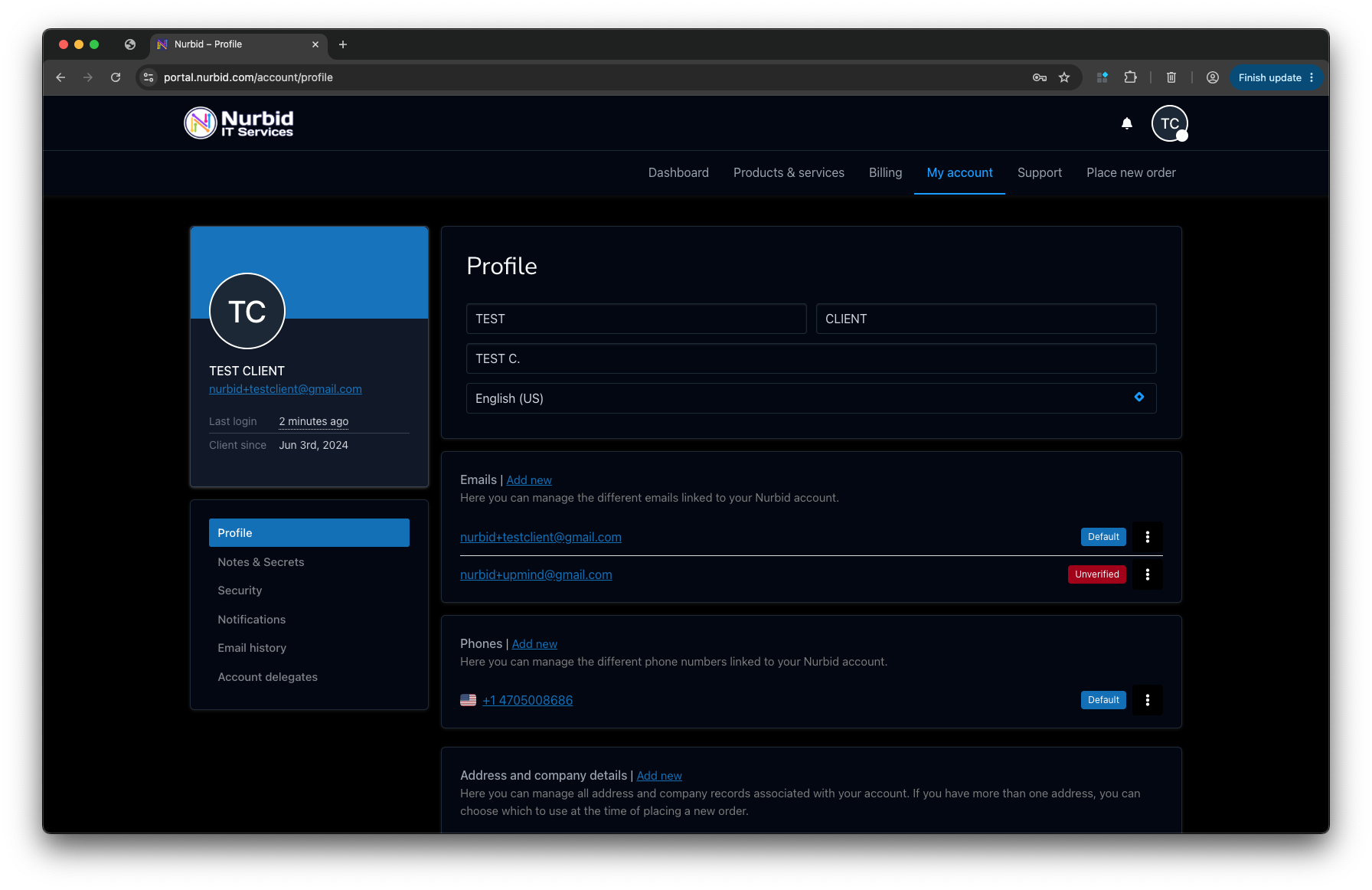
5. My Account
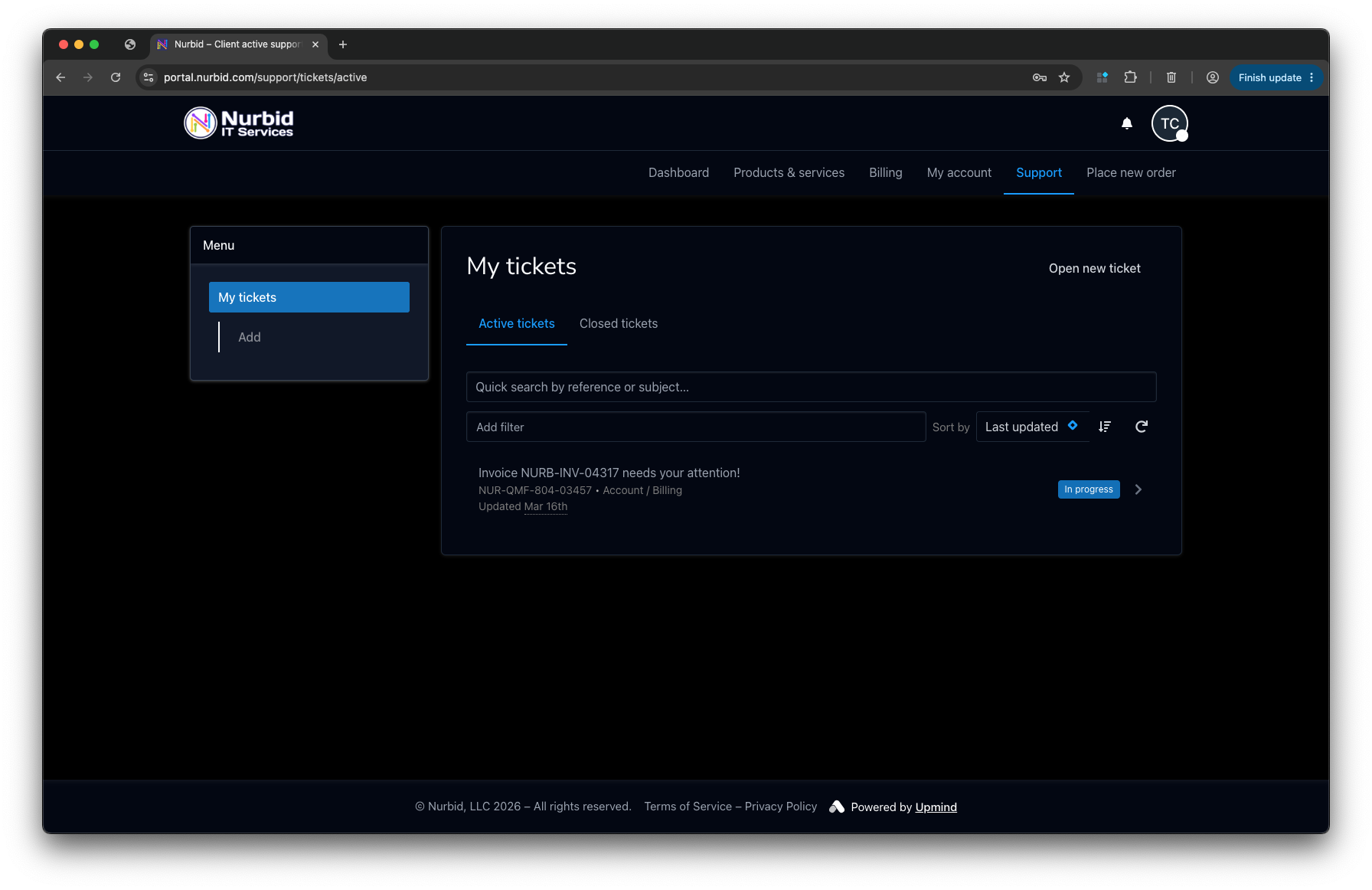
6. Support
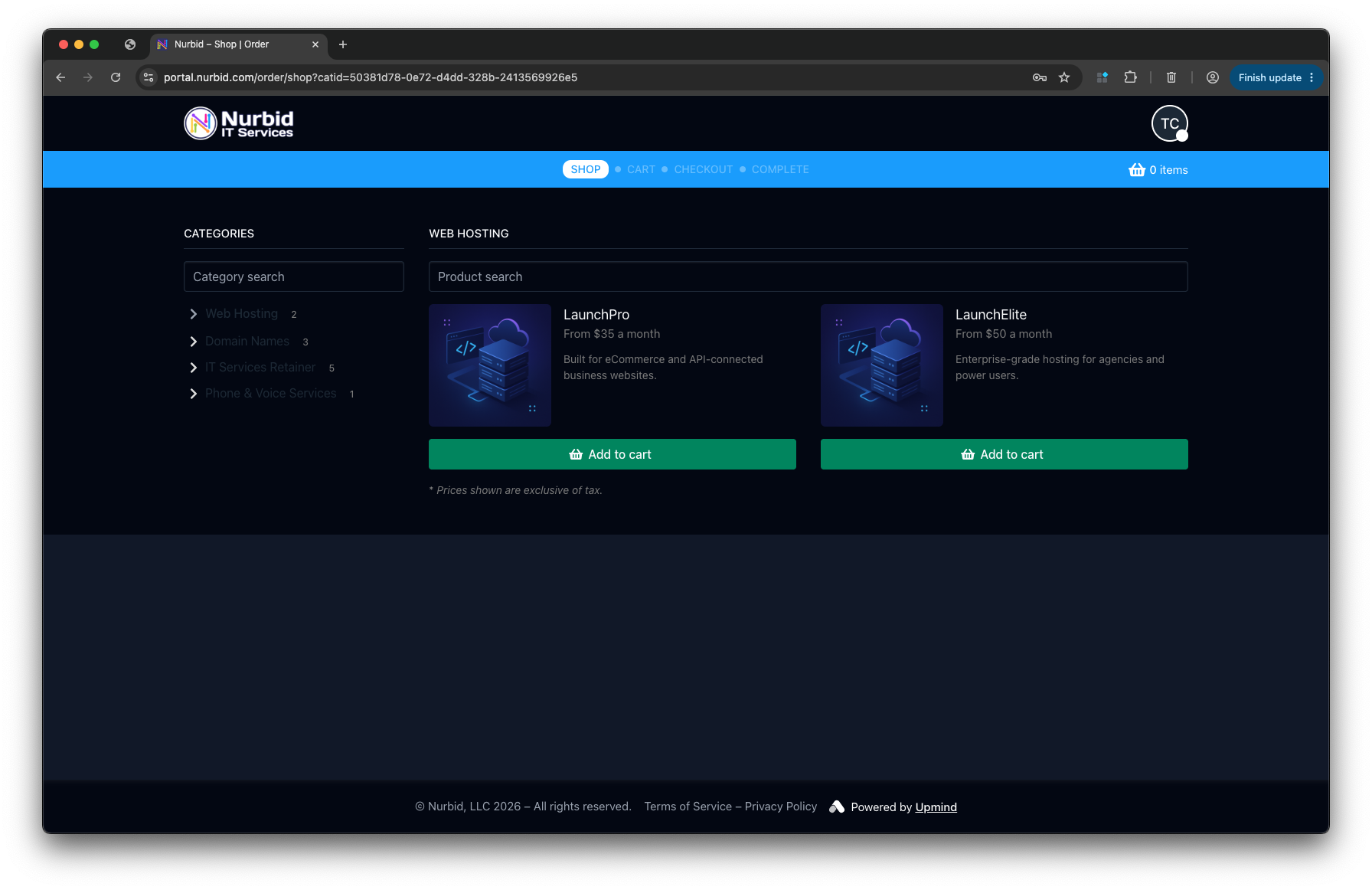
7. New Orders
Installation
Three steps to a darker client portal.
Download the CSS from GitHub, host it on your domain, and add one line to your Upmind footer template. The theme applies on load—no core Upmind changes required.
1
Download the CSS file
- Go to the GitHub repository page
- Click on
nurbid-dark-theme-for-upmind.min.cssto view the file - Click the “Download” button or copy the raw content
- Save the file to your local machine
2
Upload to your hosting
- Upload the
nurbid-dark-theme-for-upmind.min.cssfile to your web server - Ensure the file is accessible via a public URL (e.g.,
https://yourdomain.com/css/nurbid-dark-theme-for-upmind.min.css)
3
Import into Your Upmind
- Log into your Upmind Admin area
- Go to
Settings > Client area templates > Footer > Template - Add the following line to the footer template:
<link rel="stylesheet" href="https://yourdomain.com/css/nurbid-dark-theme-for-upmind.min.css">
Stay Updated
Get notified when we ship fixes and improvements.
The theme lives on GitHub. Star, watch, or follow the repo to hear about new releases, bug fixes, and CSS variable updates without checking back manually.
Customization
Tune the look with CSS variables.
Override colors and backgrounds in the :root block before you upload, or edit the hosted copy anytime. Change only what you need while keeping Upmind’s layout and hierarchy intact.